I’ve been intrigued by the GitHub Copilot App ever since it first shipped at Build a few months ago. It offers a different way of working for me, and I’m getting more comfortable with it every day. One thing that held me back was its lack of support for repositories in WSL. That has now changed.
I do most of my personal and professional work in WSL2 using dev containers. That setup is usually fast, efficient, and sandboxed the way I like it. But it didn’t play nicely with the GitHub Copilot App when that app ran on Windows and the repositories living in WSL.
Enabling WSL Support
Starting in v1.1.14, the GitHub Copilot App includes an experimental “WSL hosts (Preview)” feature for connecting to and creating sessions inside WSL. Your first step is to enable that feature in the app’s Experimental settings. After that, restart the app.
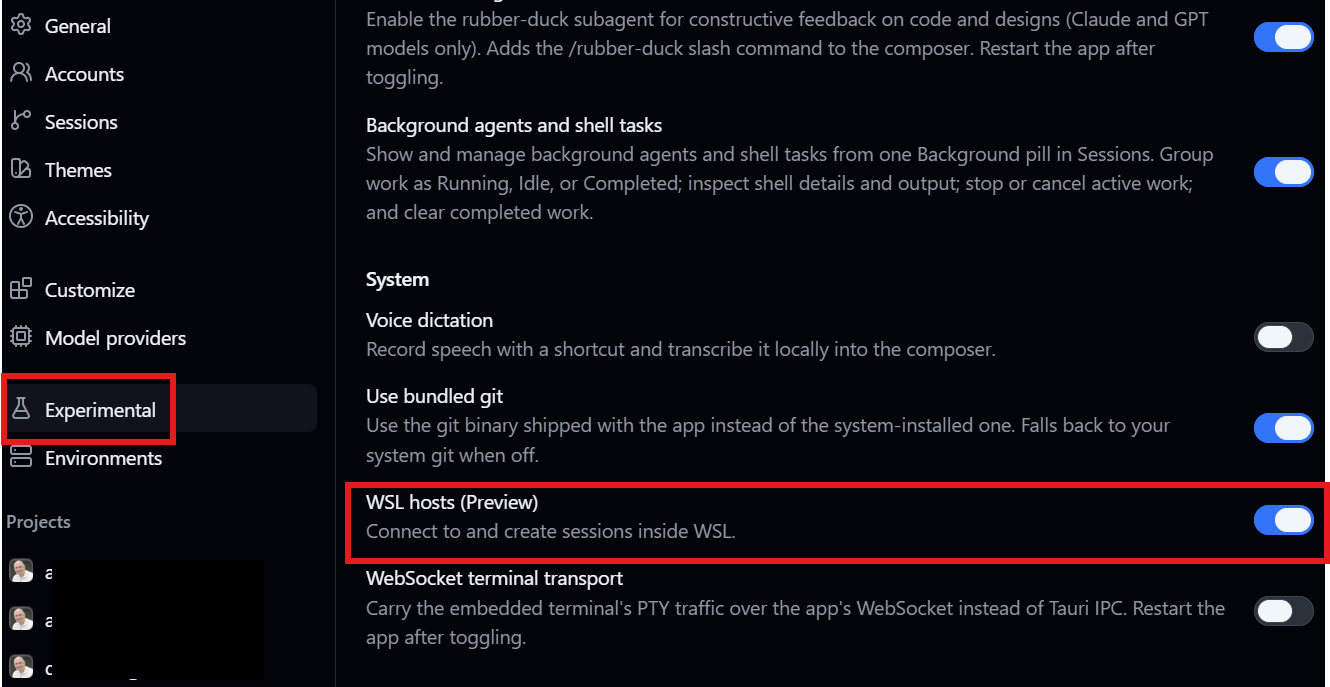
It’s experimental and preview. Is that another way of saying, “this may not work perfectly yet, but try it out and let us know what you think”? 😉
After restarting, return to the Settings menu in the GitHub Copilot App. You’ll now see a new Environments section directly below Experimental. Your next step is to connect to one of the detected WSL distributions on your machine. I run Ubuntu on WSL2, so I clicked the little + button to add that distribution to the app.
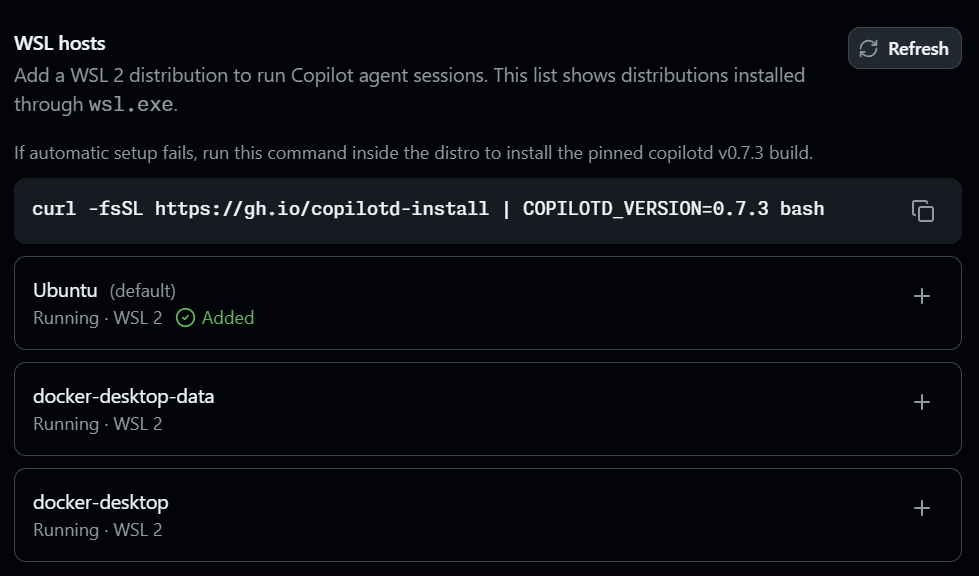
Once the app is connected to my Ubuntu instance, it’s time to add the projects. Click the + Add projects button to open a small dialog. Then browse to the folder in the WSL instance that contains the project to add to the GitHub Copilot App. Select the folder, then click the green Use this folder button. The app validates the folder and displays a “Path looks good. Will register on host.” message. Finally, click the green Add project button to finish the setup.
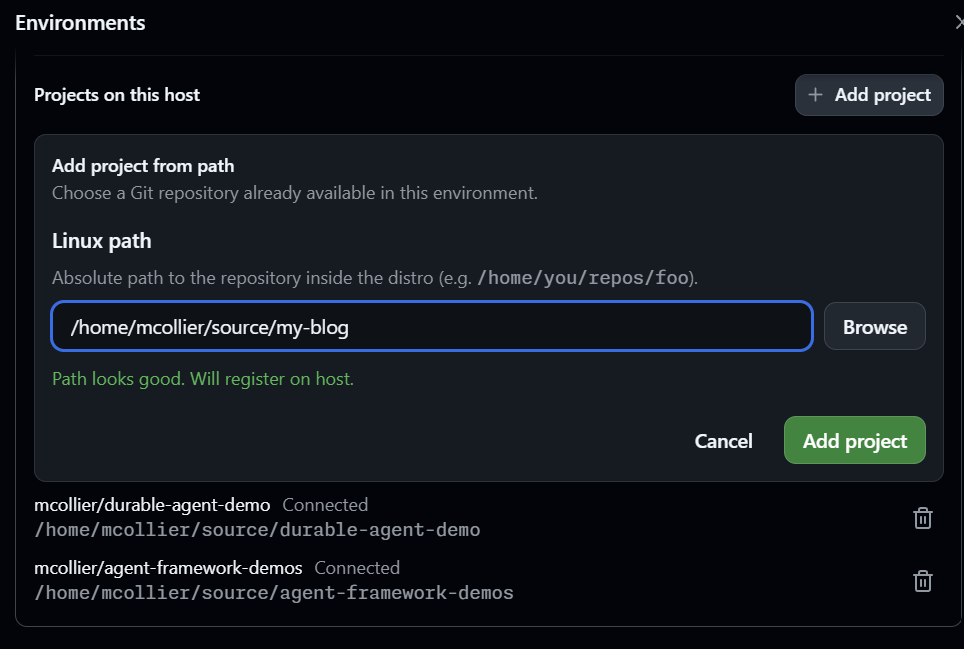
At that point, the project should appear in the project list on the left side of the app.
Limitations
I’ve had a pretty good experience so far with the new WSL support. It is still experimental and preview, and I did notice a few bugs.
Unable to select a branch to start a new session
I can’t select a branch when I start a new session. For repositories hosted on Windows, I can click the Create from branch button next to the project name to open a dialog and pick a branch for a new session. For repositories on WSL, clicking Create from does nothing. See https://github.com/github/app/issues/3246.
Can’t add projects of the same name
I had a few projects that I had previously cloned in Windows. I know, that violates my earlier rule. I cloned the repo in WSL and added it to the GitHub Copilot App, but nothing happened. A new project never appeared in the project list. There was no warning or other indicator that I was replacing an existing project or that the app couldn’t add the project because another one with the same name already existed. See https://github.com/github/app/issues/3247.
Summary
I use the GitHub Copilot App more often now. The lack of WSL-hosted project support was holding me back. Starting in GitHub Copilot App v1.1.14, a new experimental preview feature enables support for WSL-hosted projects. Despite a couple of bugs, the feature seems to be working well. I’m looking forward to continuing to use this new functionality in the GitHub Copilot App.