Today Microsoft unveiled the Microsoft Copilot harness in Foundry Agent Service. With the new harness (built on what was previously known as the GitHub Copilot SDK), Microsoft Foundry prompt agents can read and write files in the agent workspace, perform web searches, run shell commands in a sandboxed session, spawn subagents, and add standard agent skills (via a SKILL.md or the Foundry Skills Catalog).
Why a Harness Matters
An agent harness is the runtime that turns an AI model into an agent capable of performing work. It coordinates model and tool calls, manages conversation state and context, and keeps the agent progressing through multiple steps.
That matters most for reasoning-heavy agents handling complex scenarios. Instead of following a fixed script, an agent can break a goal into steps, reach knowledge and tools through connectors, inspect the results, and adjust when a step fails or a request changes. The harness supplies the context, execution capabilities, and controls to see that work through.
Foundry isn’t the first Microsoft service to get one. Earlier this year, Microsoft Agent Framework released support for new harness capabilities for custom agents. In August, Microsoft announced a new GitHub Copilot harness for Copilot Studio.
Where it fits in Foundry
When I’m creating a Foundry agent and deciding between a prompt agent and a (custom code) hosted agent, I tend to think of it like this:
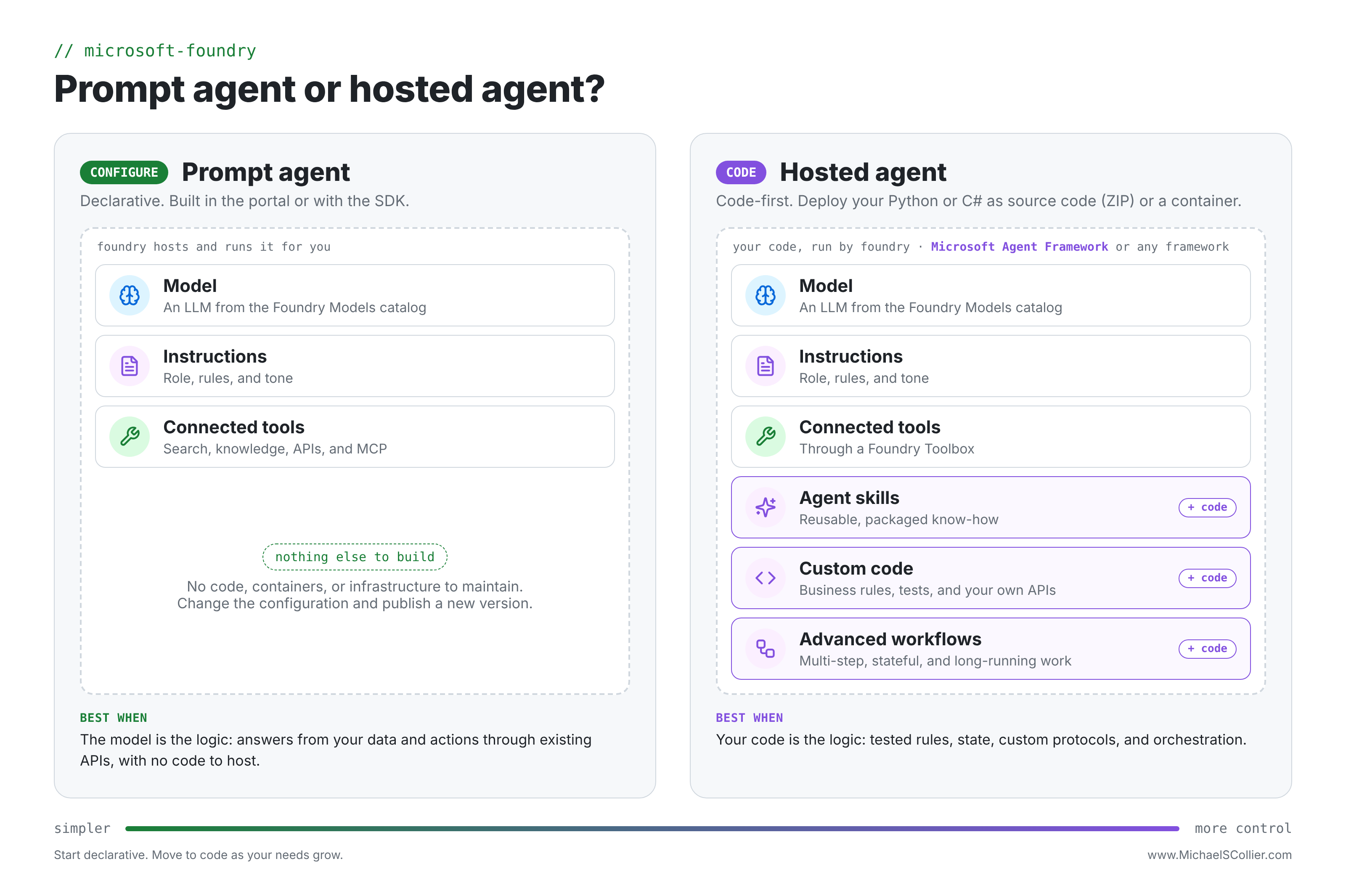
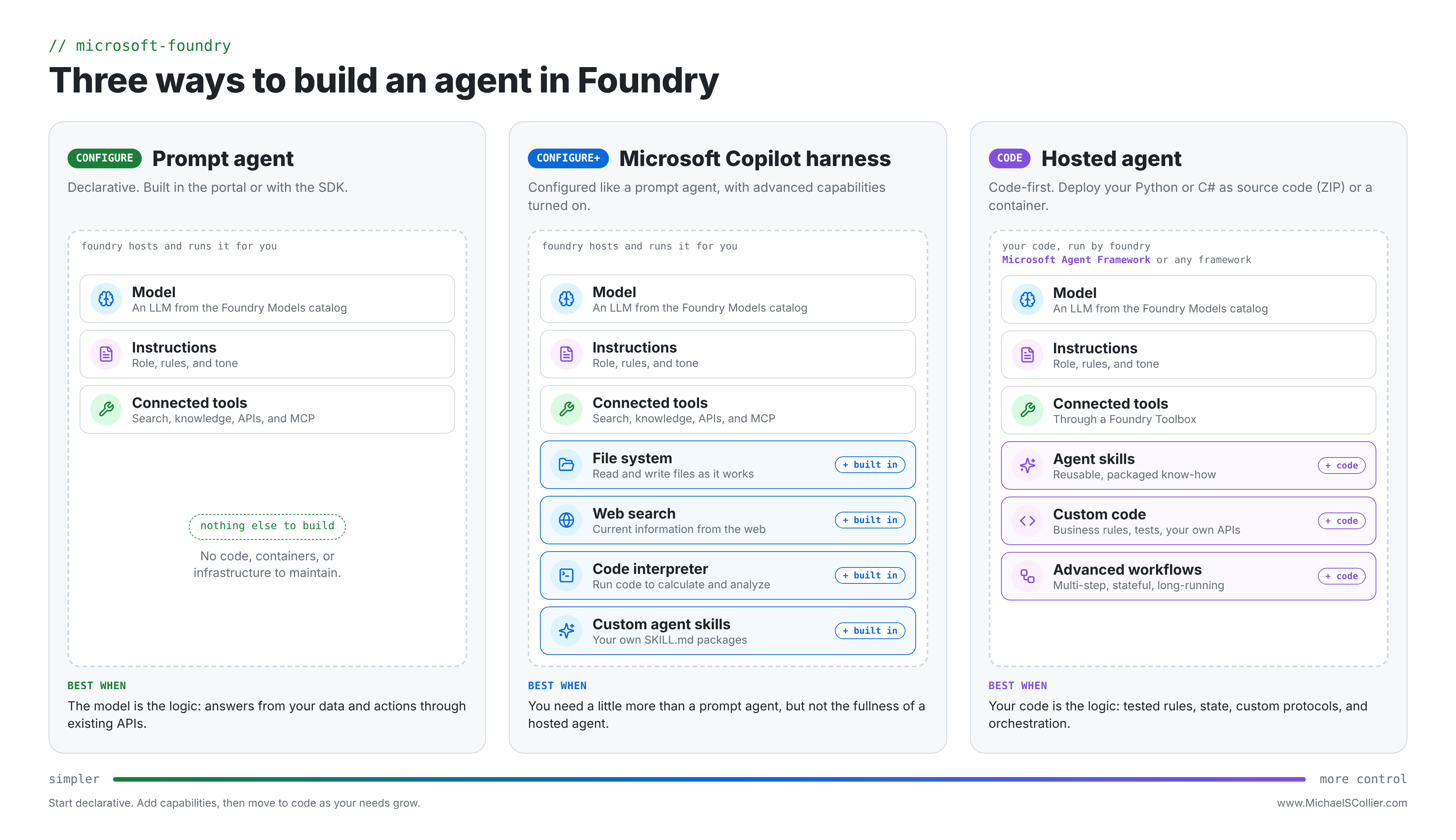
With the Microsoft Copilot harness, there is now a solution that sits in the middle between a traditional prompt agent and a custom code agent.
Getting Started
Seems pretty cool . . . let’s give this a try! I’ll walk through creating a new Foundry prompt agent with the Microsoft Copilot harness in the Foundry portal.
Create a Foundry resource, project, and model
First, you’ll need a Foundry resource and an associated project. If you don’t have them yet, follow the quickstart to get a Foundry resource and project created.
The same quickstart walks you through deploying a model. Deploy one such as gpt-5-mini or gpt-5.6-sol, but any available model should work.
Create an agent
With the Foundry resource, project, and model in place, it’s time to create your new Foundry prompt agent. From the Foundry portal, you’ll want to select Build from the upper navigation menu and then Agents from the left-side navigation menu. That’ll get you to the Agents page to view existing agents and create new ones.
Next, click the New agent button to, well, create a new agent (bet you didn’t see that coming 😉). Select the option to Build an agent.
Now you’ll provide your agent with an awesome name and select Text for the interaction mode.
Check Use the Microsoft Copilot harness to turn on the new harness.
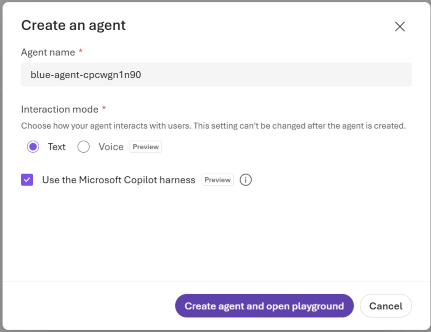
Finally, click on the Create agent and open playground button to complete and start adding agent capabilities via the agent playground.
Add agent capabilities
The Foundry prompt agent playground is where you can select your agent’s model, provide instructions, add a knowledge base (e.g., using data in Azure AI Search to inform your agent’s response), manage safety and security guardrails, and set the tools your agent can use. Nearly all of this is the same as with standard prompt agents, except the tools.
With the Microsoft Copilot harness, the agent has several built-in tools:
- File system read
- File system write
- Web
- Shell
- Subagents
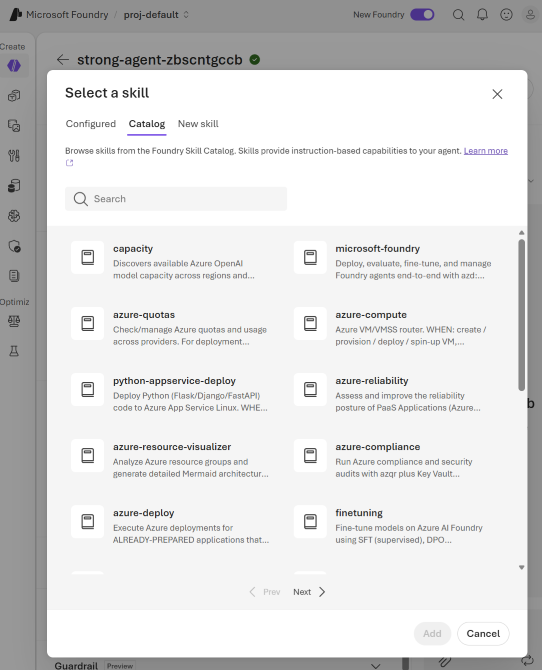
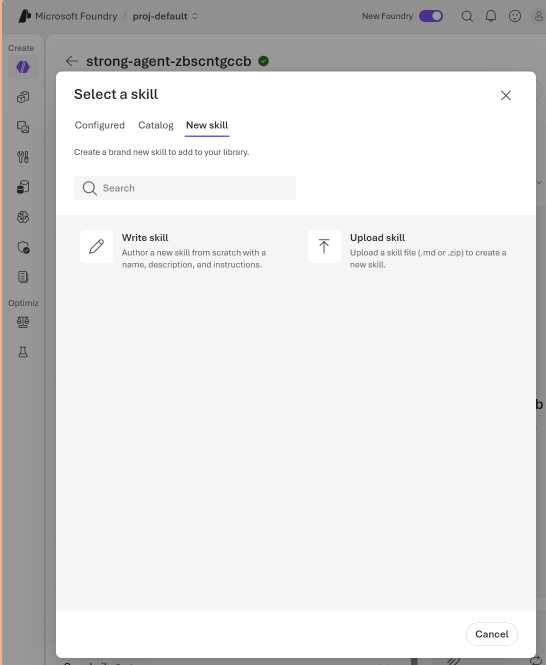
The harness also adds a code interpreter and skills. You can write a new skill from scratch (set the name, description, and instructions), upload an existing SKILL.md file, or reference a skill from the new Foundry Skill Catalog.
Let’s do something
One of the first things I tried with a new harness-enabled prompt agent was the web search and subagent capabilities. I was curious how it would work to have the agent spawn a subagent to carry out a web search for part of a task.
The task (granted, relatively trivial for an early experiment) was to have the agent find the ten most populous cities in Ohio and calculate each city’s share of the state’s population. The prompt was as follows:
Create a table showing the 10 cities in Ohio with the highest population, along with a calculation of the percentage of the population of the city relative to the population of Ohio. Use subagents to split up the work.
Here is the result:
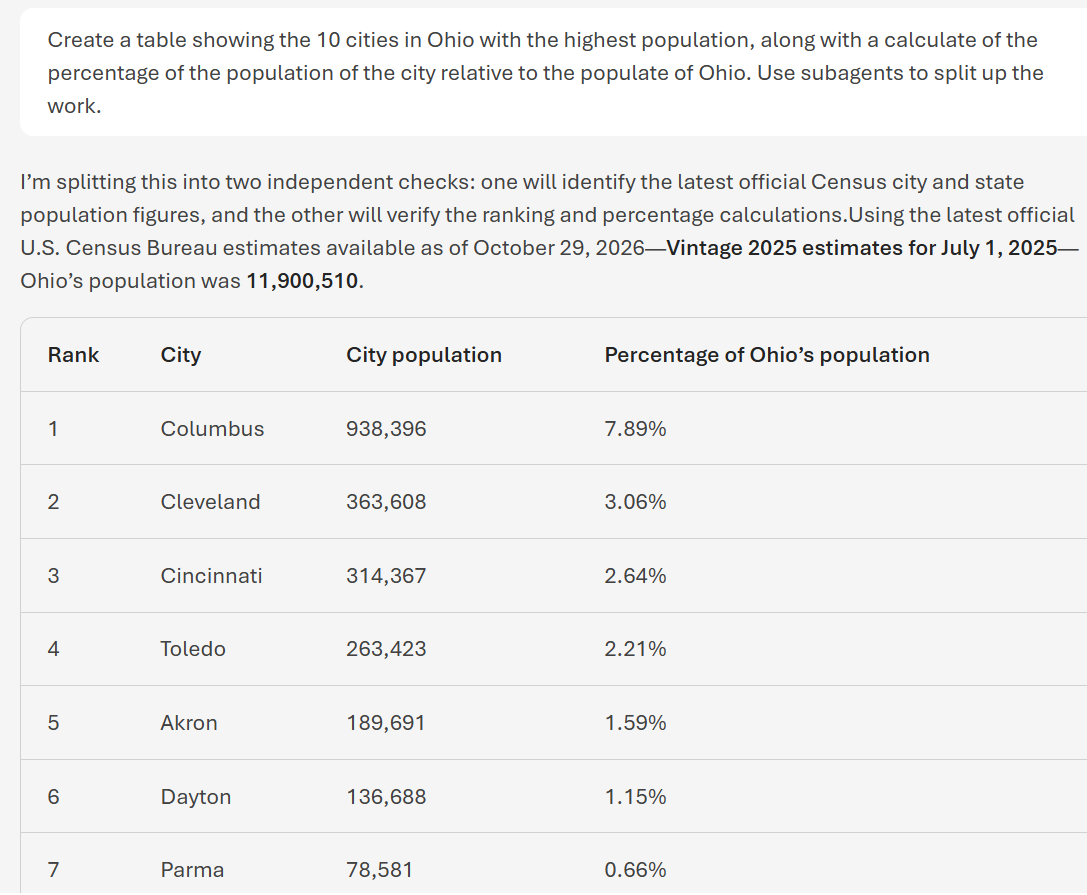
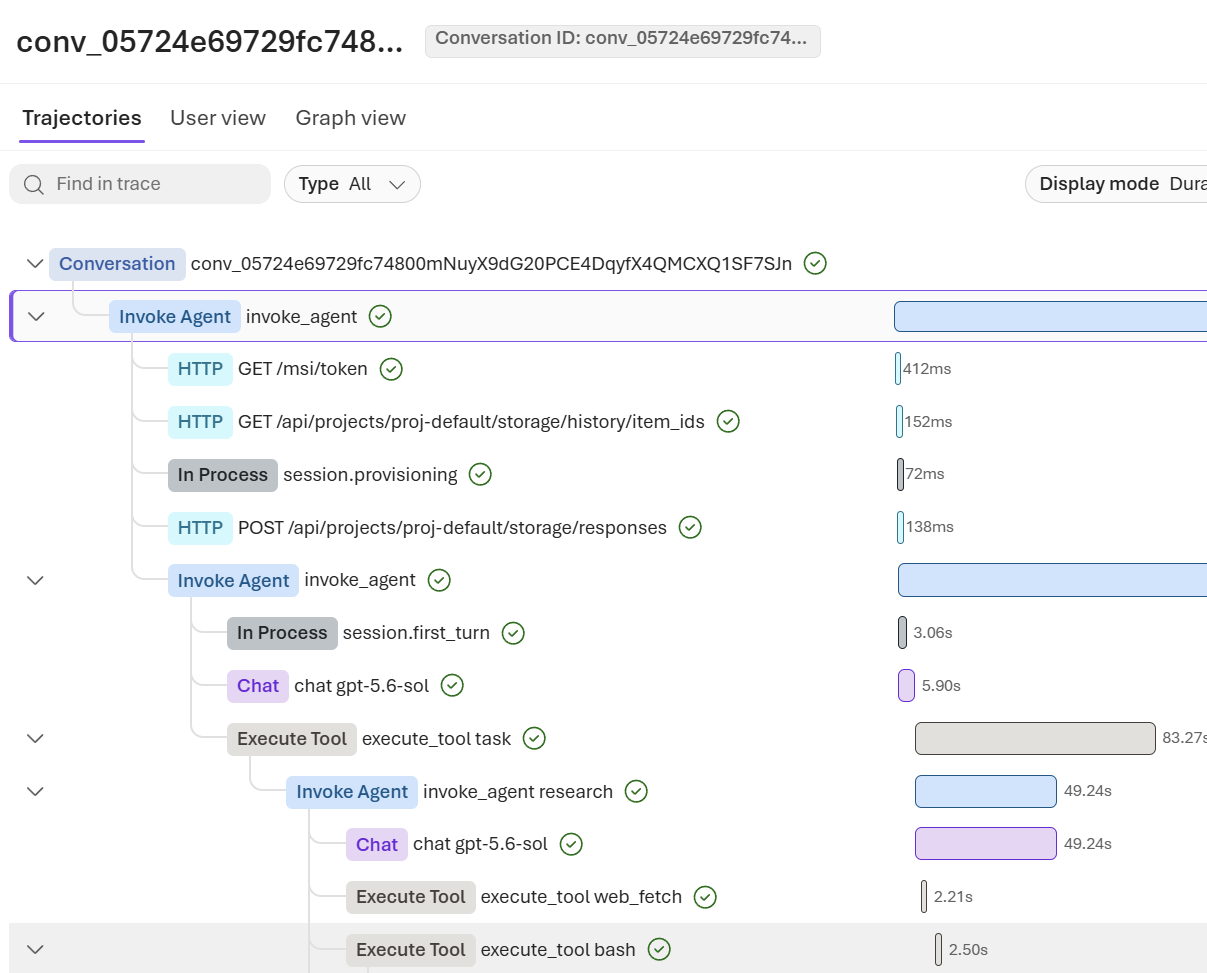
The traces in the Foundry portal confirm the harness did what I asked: the main agent handed the research to a subagent instead of doing it itself.
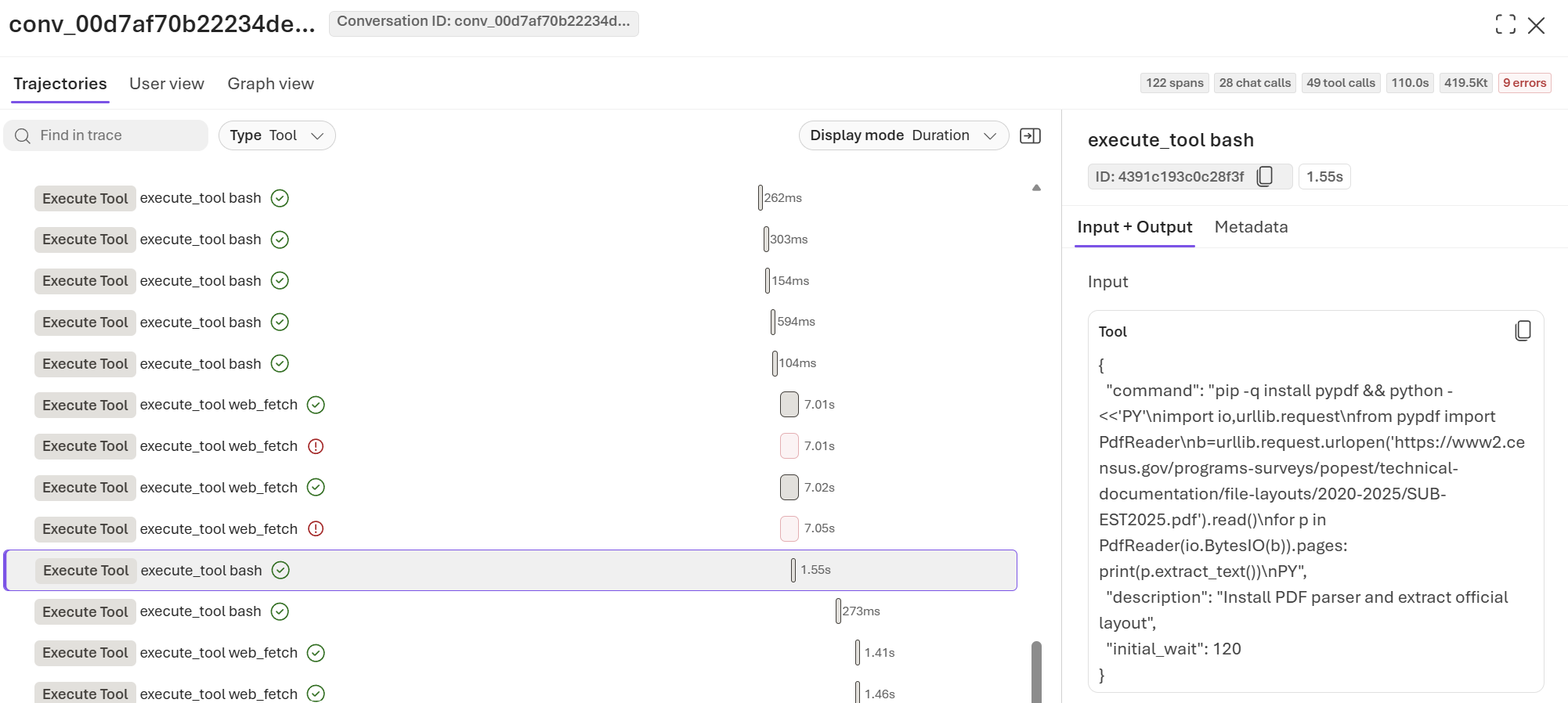
They also show a few tool calls that ran Python code to calculate the percentages:
Wrapping up
I’m looking forward to building more agents with the Microsoft Copilot harness. It may remove some of the need to move up to a code-first agent with Foundry hosted agents and Microsoft Agent Framework.